


Google Chrome has a built-in QR code generator that allows you to create a QR code for the webpage you are currently viewing. No additional website, extension, or QR code service is needed.
Create a QR Code for Any Webpage
-
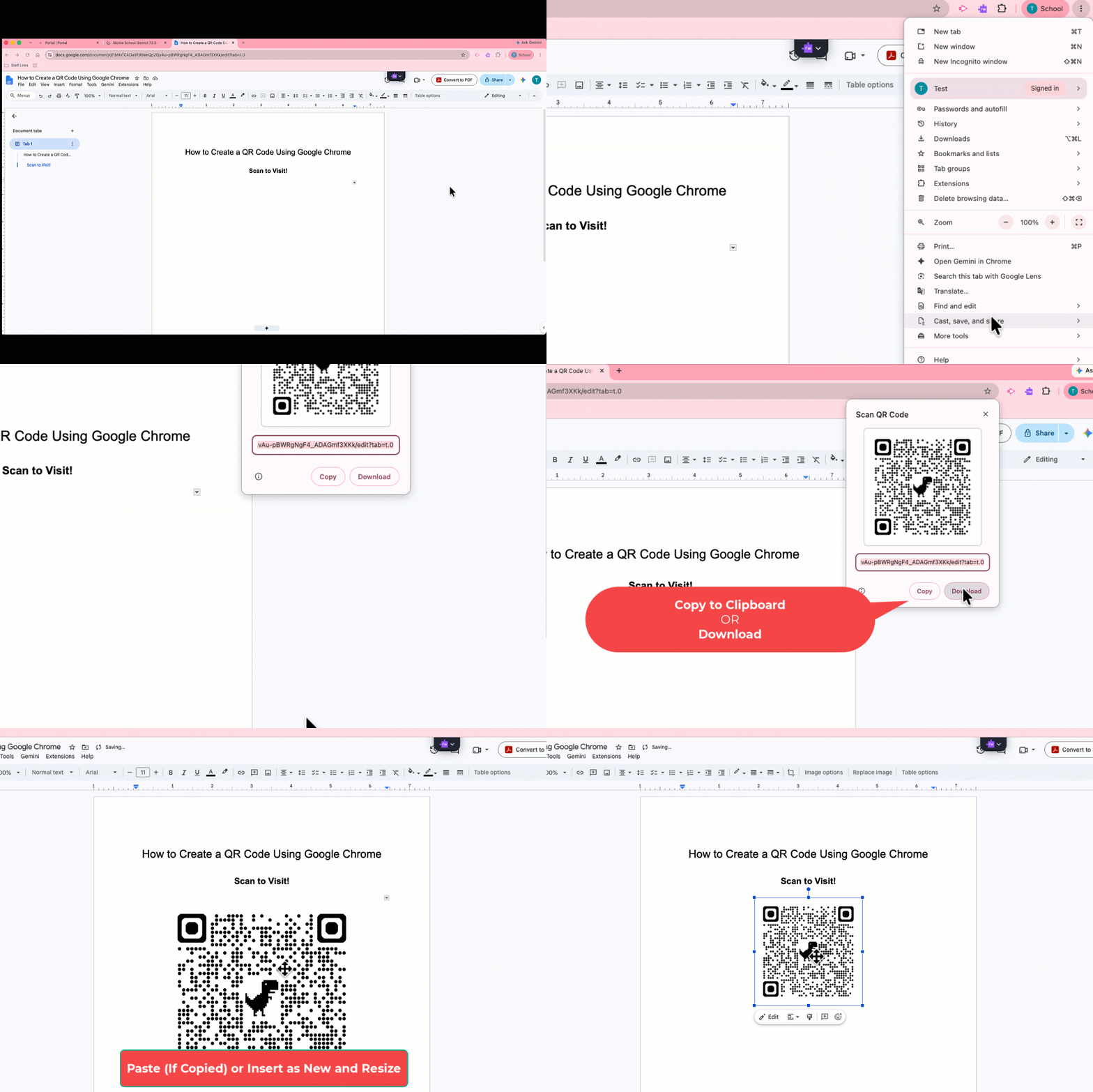
Open Google Chrome and navigate to the webpage, Google Doc, or other web-based resource you want to share.
-
Select the three dots (⋮) in the upper-right corner of Chrome.
-
Select Cast, save, and share.
-
Select Create QR code.
-
Chrome will display a QR code that links to the page you currently have open.
-
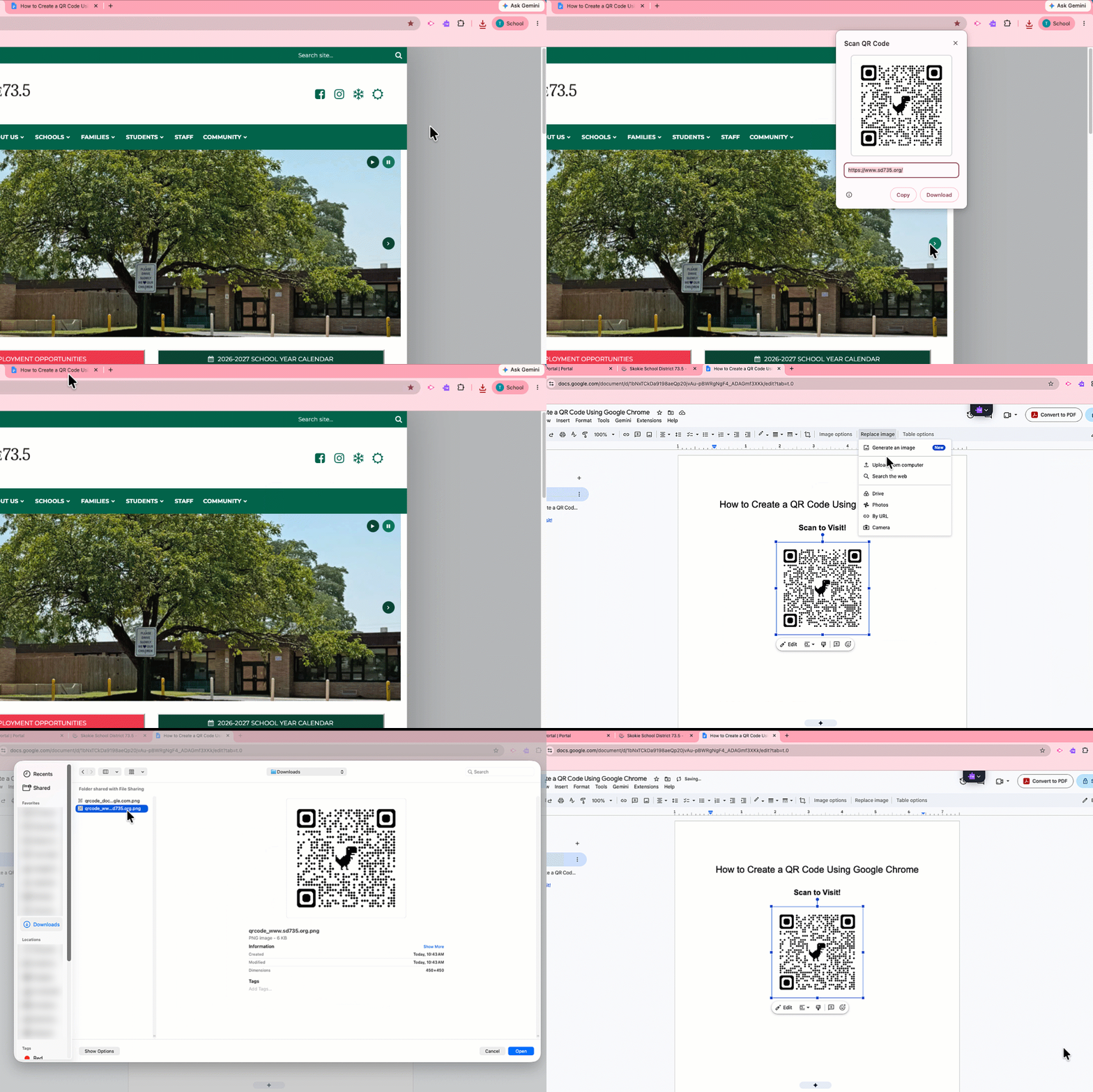
Select Download to save the QR code as an image. You can then add the image to a document, presentation, flyer, sign, or other resource.
Quick Option: Right-Click
On some webpages, you can also:
-
Right-click an empty area of the webpage.
-
Select Create QR Code for this Page.
-
Select Download.
This option may not appear in some web-based applications, including Google Docs. If you don't see it, use the Chrome menu instructions above.
Before Sharing Your QR Code
Test your QR code before distributing or printing it. Scan it with a phone or tablet and confirm that it opens the correct resource.
Check Sharing Permissions
A QR code provides a convenient way to open a link, but it does not change the sharing permissions of the resource.
For example, if you create a QR code for a Google Doc that is restricted to specific people or District accounts, anyone else who scans the QR code will still be unable to access the document.
Before distributing a QR code, make sure the linked resource has the appropriate sharing settings for your intended audience.

